Flexible Always-on-Top Popup Player — Drag & Resize Anywhere While Working
Click the 'Popup' button in BoltPlayer to detach your Live TV broadcast, Movie, or Series into a borderless Always-on-Top floating window. Keep it compact in the corner while browsing Chrome or expand it to a large view and drag it anywhere on your desktop.
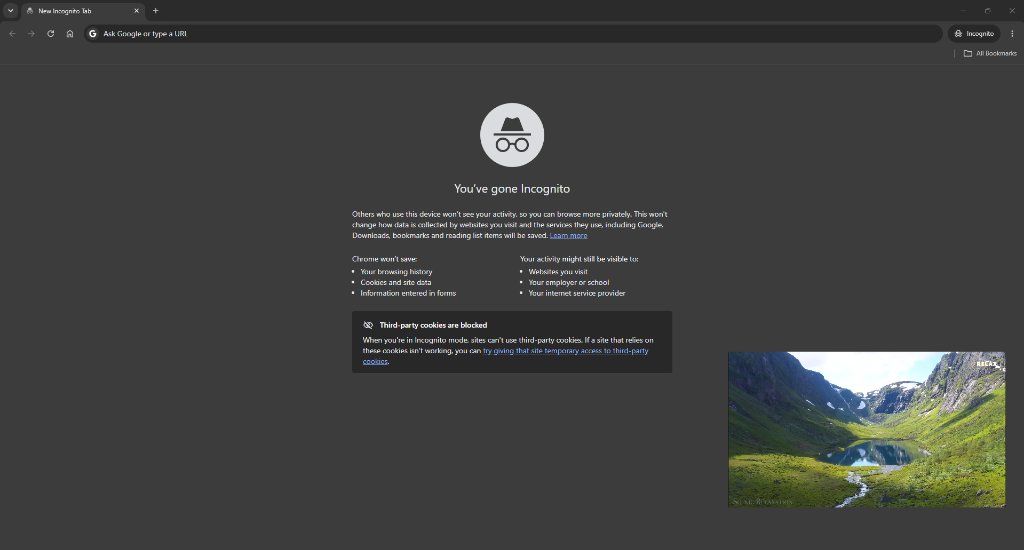
Keep It Compact in the Corner or Stretch It Large Anywhere Over Your Work
Unlike fixed Picture-in-Picture browsers, BoltPlayer's native Windows Popup Player can be dragged to any monitor or corner and resized freely from a tiny status monitor to a large floating cinema screen.
Unobtrusive Corner Monitor While You Work
Park the borderless video frame in the bottom-right corner of your screen while browsing the web, answering emails, or coding. Zero title bars or window borders get in your way.
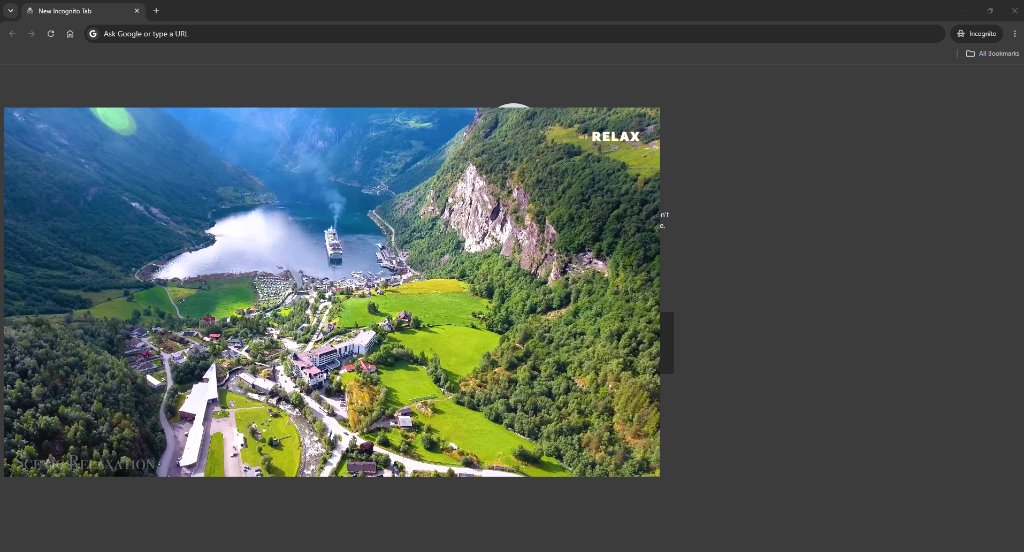
Dragged to Any Position & Expanded Large
Want a closer look at a live match or movie scene? Click and drag the window anywhere on your screen and pull any edge or corner to scale it up smoothly at 60fps.
Built for Multitasking: Small Corner View or Large Floating Stage
Unlike browser tabs that get buried when you switch windows, BoltPlayer's native Windows Always-on-Top Popup Player floats cleanly above all your desktop workspaces with zero window borders.
Place the popup in the bottom-right or top-right corner while coding, reading, or browsing in Chrome without blocking your main workspace.
Drag the popup window to the left or center of your monitor and stretch it to a large theater size whenever a key moment happens.
Click the expand icon on hover to return immediately to full BoltPlayer desktop or Full Screen mode with zero stream reload.
All Captured Views for Popup Mini Player (PiP)
Compact Corner Popup While Browsing & Working
Keep a compact, unobtrusive 16:9 borderless video window pinned in the bottom-right corner of your screen while browsing the web or working in other applications.
Expanded Large Popup Moved Across the Screen
Drag the Popup Player to the left, center, or second monitor and resize it as large as you want — giving you complete freedom over size and placement.
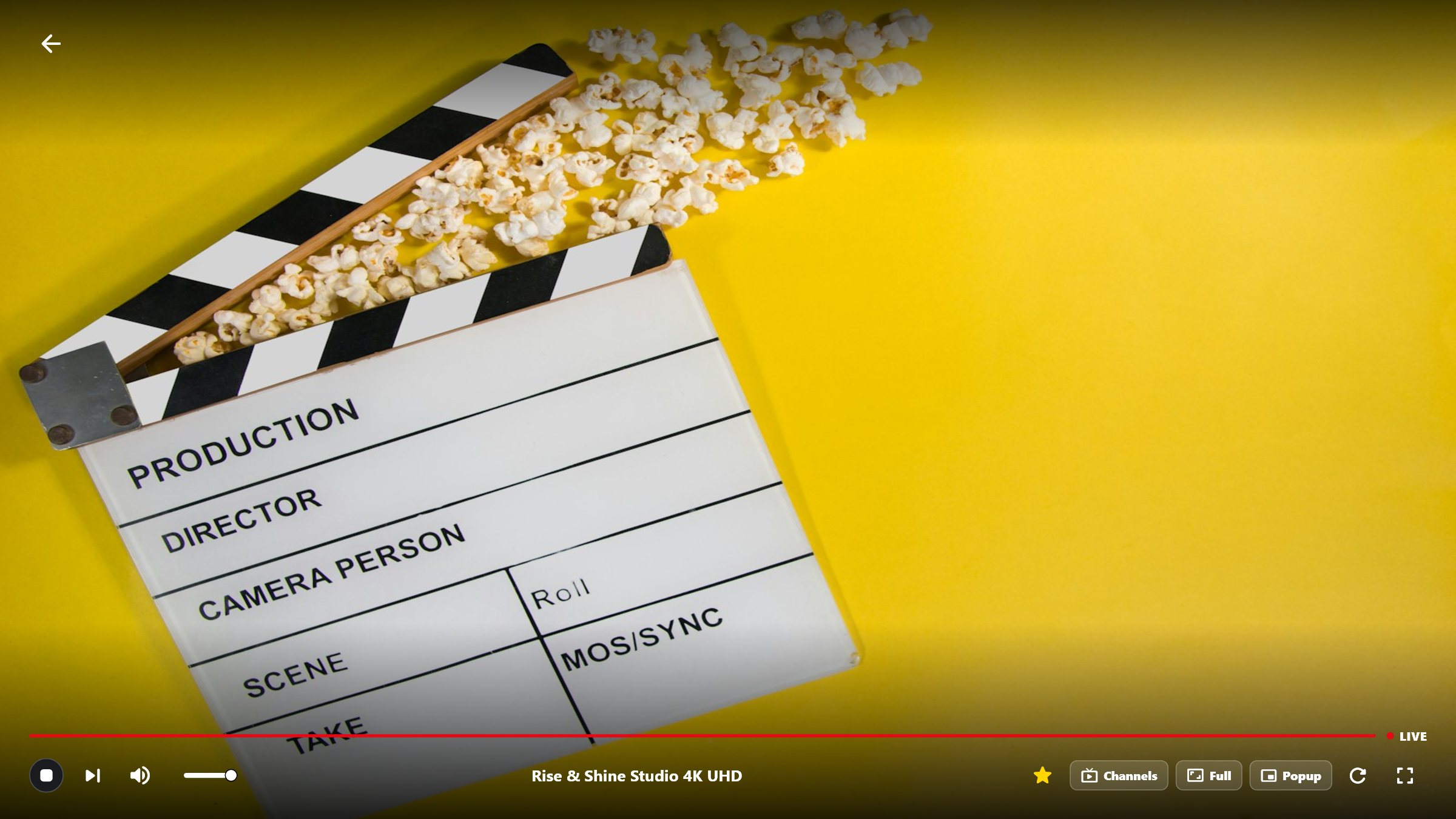
One-Click 'Popup' Button on the Full Screen Control Bar
Activate Popup mode anytime directly from the bottom transport bar in Full Screen mode (next to the Aspect Ratio button).
Try Popup Mini Player (PiP) Free for 30 Days
Download BoltPlayer for Windows 10/11 or connect your playlist immediately via QR Code / MAC Address & Device Key.